
This page outlines the security standards, technical requirements, and operational practices Kryterion follows when delivering online proctored exams. Document version: v06042026.

Security & Exam Integrity
Kryterion Site Security
Kryterion operates globally and is centrally located in the United States, with supporting locations and associates in the Philippines, South Africa, the United Kingdom, and Japan.
Kryterion locations require a security badge, provided to employees only, to access the site. Sites also have security cameras that can be actively monitored and a motion detection alarm system for when the office is closed.
Security Measures and Quality Assurance
Security during online exams includes, but is not limited to:
-
Live proctoring of online exams by Proctors located at Kryterion locations for 24/7 coverage.
-
Proctors use system alerts and transcript notation to document or address non-conformities. Proctors are supported by Customer Support Advocates when they escalate a candidate's session.
-
Proctors and Customer Support Advocates never see or have access to live examination content.
-
-
Video and audio recording of all test sessions.
-
Exam sessions can be reviewed after exam submission. Recordings are time stamped for any alerts sent during the session, viewable on the session's transcript.
-
Daily auditing of sessions by Quality Assurance Analysts.
-
Standard (Non-Precheck)
Security measures for candidates launching into an exam and verifying identity:
-
Logins are unique to the candidate's account and require a user-set password.
-
The candidate logs into their personal account on the date and time of their registration. A launch button is shown next to the assessment's name.
-
Equivalent to the onsite testing center use of an authorization code entered by the onsite Proctor to begin the test session.
-
-
-
Launch window at the scheduled time.
-
The launch button is available to the candidate from 10 minutes before to 20 minutes after their scheduled exam time.
-
Equivalent to a test center check-in.
-
-
-
Optional: Biometrics can be authenticated by:
-
Keystrokes and/or facial recognition stored from the Biometric Enrollment after exam registration.
-
Test Sponsors determine the biometric process(es) to be used.
-
-
Pre-Exam Security Check
-
Optional service: When candidate pre-check is enabled, the candidate is prompted to meet with a Customer Support Advocate before beginning their exam.
-
During a pre-check, an Advocate may perform several validations to confirm the candidate's identity, environment, or test material meets security standards before the candidate sees exam content.
-
Customer Support Advocates work with only one candidate at a time.
-
Communication is provided via text chat, with tools to establish a voice call as needed.
-
Validations may include, but are not limited to:
-
Government ID check against the candidate's Webassessor account biometric information (first and last name, photo).
-
Scan or panning of the environment to confirm unauthorized test aids, devices, or people are not a risk to exam integrity.
-
Individual unauthorized test aids found should be moved at least 1 foot away from the front, right, or left of the testing device.
-
Cluttered testing areas are examined, but will not be cleared unless the Test Sponsor requires it.
-
-
Approved test aid material or behaviors, as outlined in the exam accommodations.
-
Camera type or position check when requirements include an external 90-degree view of the candidate, or dual camera.
-
-
All pre-check expectations or accommodations must be approved and communicated before being applied to an exam.
-
AI can be enabled for a more streamlined check-in process.
-
Once enabled, AI can assist in checking the candidate's identification and securing the surrounding area through captured photos.
-
Photos captured during the AI pre-check are not saved, for security reasons.
-
-
-
Security Note: While the pre-check process is optional for Kryterion Test Sponsors, sponsors with accreditation or seeking accreditation will need to elect to use it to meet accreditation and testing industry standards.
Candidate Support & Experience
Customer Support
Kryterion provides 24/7 support to all Kryterion Online Testing candidates for their Webassessor access needs.
-
Exam launch assistance is limited to online proctored and Kryterion test center delivered exams. Paper-based, unproctored, or privately hosted events are supported by your Customer Success Manager.
-
Web form for test candidates: https://support.kryterion.com/contact/kryterion-support-webform-BJGi_dGq1e
-
Outside the exam: Live agent and AI-guided chat support at https://support.kryterion.com
-
The support chat is at the bottom right of the community site. Selecting it prompts the user for initial information to assist Support Advocates.
-
Users can save or request their chat transcript.
-
Users can upload images or files for review.
-
-
Inside the exam: Live agent support
-
The Support button is in the upper right corner while taking an exam.
-
During an online proctored exam, this support is facilitated within Webassessor.
-
Displays the candidate's video feed for their reference.
-
Pauses the exam content and timer.
-
The support conversation and notation are accessible after the exam has completed or been suspended.
-
System & Technical Requirements
Secure Browser
The candidate must install the secure browser software to take an online proctored exam. The secure browser creates a locked-down testing environment on the candidate's workstation to protect the integrity and security of the testing session. It prevents the candidate from going to another website, disallows certain key functions, and disables plug-ins and applications (such as recording software and Skype).
Secure browser application: Respondus LockDown Browser. See Respondus LockDown Browser computer requirements.
Camera Requirements
As the Test Sponsor, you choose whether to require an external camera, which provides a more complete view of the candidate's test environment, or to allow the candidate to use an internal webcam embedded in a laptop or an external USB camera.
No External Camera Requirement
If an external camera is not required, the candidate may use an internal or built-in camera (for example, a webcam embedded in a laptop) or an external camera. The candidate's full face must be in view during the entire proctoring session.
Security Note: Relying only on an internal, front-facing laptop webcam creates a 180-degree blind spot around the testing environment, even when the environment was secured by a pre-check. Once the Proctor loses visibility of the desktop surface, keyboard area, or peripheral space, the exam is highly vulnerable to subversion. Proctors must then rely on identifying subversion through trending eye behavior or audio cues, which are largely subjective.
External Camera Requirement
Test Sponsors can require the candidate to use a camera with a heavy base and flexible neck, which allows placement with a more complete view of the testing environment. The webcam must meet the following criteria:
-
Minimum video resolution of 720p at 30 fps.
-
High-speed USB 2.0 connection (plug and play preferred).
-
Cord length of 6 ft (2 m) or more.
-
No auto zoom or auto focus. These features must be turned off.
-
Built-in microphone via the camera or system.
The following are not acceptable as external camera alternatives:
-
Digital cameras / camcorders
-
Smartphones
-
GoPro cameras
-
Tablets
-
PlayStation Eye / Camera
-
EyeToy
-
Kinect
-
Additional laptops or computers
Security Note: An external camera provides an enhanced view of the environment, meaning more of the candidate, the desk area, and the area around the candidate can be monitored for subversive indicators. With visibility to these areas during testing, a Proctor can address factual security concerns with more confidence and less reliance on subjective suspicion.
Dual Camera Requirement
Test Sponsors may also enable a dual camera requirement. The candidate is required to have both an internal, built-in camera and an external camera.
The candidate is instructed to set up the additional camera behind them, while the internal camera is positioned in front of them. Refer to the candidate guidance for more information.
Unlike the external camera requirement, dual camera allows the candidate to use their mobile phone as the secondary camera.
Security Note: This is the optimal camera requirement for online testing, as more of the testing environment can be monitored for subversion. Using the candidate's mobile device as the camera also reduces the cheating devices available to them.
Proper External Camera Placement
Dual camera: The Proctor must be able to see all of the following at the same time, from an internal view and a 45-degree angle:
-
Mouse
-
Keyboard
-
Test aids (if allowed), with the whole test aid in view for the duration of the session
-
Candidate's full head and torso
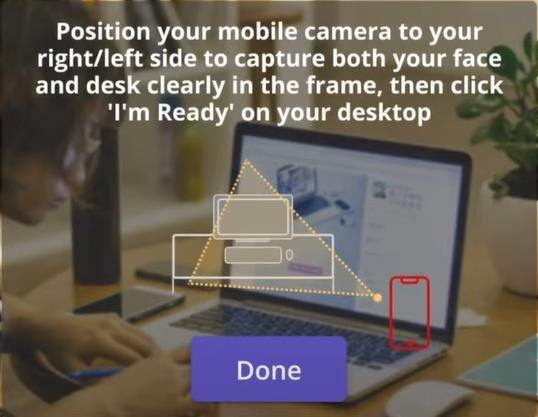
External only: The Proctor must be able to see all of the following at the same time, from a side-profile view:
-
Mouse
-
Keyboard
-
Test aids (if allowed), with the whole test aid in view for the duration of the session
-
12 inches (30 cm) of the testing area on either side of the keyboard
-
Candidate's entire head and torso
-
6 to 12 inches (15 to 30 cm) behind the candidate

Authentication & Biometrics
Biometrics
Test Sponsors may choose to use one or both biometrics offered by Kryterion: keystroke analytics and facial recognition. Biometrics add a level of authentication beyond the password required to launch the exam and verify the candidate's identity. Kryterion recommends that Test Sponsors use biometrics for online administration of credentialing exams to keep test security as close to onsite test center security as possible.
If a Test Sponsor requires either biometric, the candidate must create a biometric profile during an enrollment process after Step 1, installing the secure browser. Once the profile is created, the system verifies the candidate's biometrics at exam launch before allowing them to proceed.
Keystroke Analytics
The candidate's typing pattern, based on the flight of the fingers between keys (speed) and the duration of the fingers on the keys (rhythm), creates a unique biometric profile. During enrollment, the candidate is prompted to type their name 5 to 8 times to create the profile. When the candidate launches the exam, they are prompted to type their name again, and the software checks that the typing pattern matches the one captured at enrollment.
Facial Recognition
The candidate takes a photo of themselves during enrollment. When they launch the exam, they are prompted to take another photo. The technology compares a facial mapping of both images to verify that the enrollment photo and authentication photo match.
Standard Security Overview
Camera Requirements
Any camera requirement can be used: internal, external, or dual.
Pre-Check Requirements (Optional)
Pre-checked exam sessions help validate that candidates and their environments are properly prepared to take an online exam (see Pre-Exam Security Check). Pre-check also supports any program-specific instructions that need to be practiced before the candidate sees exam content.
If pre-check is not used, the candidate is responsible for meeting the testing conditions below, and any issues identified by the Proctor are addressed according to Kryterion's testing standards and/or the Test Sponsor's program specifications.
Testing Conditions
-
The testing area should be well lit, quiet, and free from distraction.
-
The testing surface is generally clutter-free and contains only one computer, one monitor, one keyboard, and one mouse. Dual monitors are detected by the secure browser, and the second monitor is disabled.
-
Only allowed test aids are in the immediate area.
-
Accessory attire and other items (for example, lanyards/name badges, neckties, consumables, bags, purses, keys, wallets, hats, briefcases, books, cell phones, calculators, portable electronic devices, watches, jewelry, pens) are permitted.
-
If the candidate is seen subversively interacting with any item that is not permitted as a test aid or accommodation, the item will be subject to removal, or the session will be suspended.
-
-
Interaction with other individuals during the test session is not permitted and may result in early session termination, unless approved by the Test Sponsor.
-
Breaks during exams are not allowed unless specifically authorized by the Test Sponsor. Leaving the area for any reason may result in early session termination.
Enhanced / Accreditation Security Overview
Camera Requirements
External or dual cameras are required to properly monitor and secure the testing environment. An internal camera cannot effectively monitor the testing environment.
Pre-Check Requirements
Pre-checked exam sessions help validate that candidates and their environments are properly prepared to take an online exam (see Pre-Exam Security Check). Pre-check also supports any program-specific instructions that need to be practiced before the candidate sees exam content.
In addition to standard security practices, Customer Support Advocates will assist with removing the following accessories and consumables:
-
Hats, head scarves
-
Watches
-
Masks
-
Consumables other than water in a clear container
An exception is made for medical or religious items.
Testing Conditions
-
The testing area should be well lit, quiet, and free from distraction.
-
The testing surface is generally clutter-free and contains only one computer, one monitor, one keyboard, and one mouse. Dual monitors are detected by the secure browser, and the second monitor is disabled.
-
Only allowed test aids are in the immediate area.
-
Accessory attire and other items (for example, lanyards/name badges, neckties, bags, purses, keys, wallets, briefcases, books, cell phones, calculators, portable electronic devices, jewelry, pens) can be worn, but will be monitored for subversive use.
-
Interaction with other individuals during the test session is not permitted and may result in early session termination, unless approved by the Test Sponsor.
-
Breaks during exams are not allowed unless specifically authorized by the Test Sponsor. Leaving the area for any reason may result in early session termination.
Proctoring Operations
Online Proctor Training
Training for Proctors includes, but is not limited to:
-
40-hour training curriculum
-
Structured training curriculum with a trainer
-
Training videos with scenario examples
-
-
40 hours of shadowing a more experienced Proctor
-
60 days of nesting
-
Standard Operating Procedures documentation designed specifically for the Proctor role
-
Summative exam resulting in a credential (Kryterion Certified Proctor)
Online Proctor Equipment
-
All online Proctors use noise-cancelling headphones set at a predetermined minimum level for optimal audio intake to distinguish aberrant behavior during an exam.
-
All online Proctors use monitors with SD resolution.
The goals for Kryterion online Proctors are:
-
Ensuring the candidate has set up their testing area or camera in a standardized way so the session can be effectively proctored to yield a valid test result (non-precheck).
-
Recognizing and sending the appropriate alerts to the candidate when unauthorized activity is observed, and escalating the session to a Customer Support Advocate when appropriate. This includes all forms of behavior Kryterion is responsible for documenting, reacting to, and reporting (for example, cheating and/or test item theft).
-
Allowing candidates to test as freely as possible, only disrupting the session when test security concerns arise.
Test Security Provisions
-
Online Proctors must strictly monitor testing sessions. Only the candidate is permitted in the immediate testing area during a session unless approved by the Test Sponsor.
-
Online Proctors visually inspect all candidates' eyewear for smart glasses or any type of video recording technology.
-
If a concern is identified, the session is escalated to a Customer Support Advocate.
-
-
Online Proctors assess candidates for any accessory attire or other items not allowed in the testing area and ensure they are removed.
-
Items or accessory attire identified by the Proctor after a session has begun are subject to inspection and/or removal based on the severity of the security risk they pose.
-
Customer Support Advocate (CSA) Operations
Customer Support Advocate Training
Training for CSAs includes, but is not limited to:
-
40-hour training curriculum
-
Structured training curriculum with a trainer
-
Training videos with scenario examples
-
-
40 hours of shadowing a more experienced CSA
-
60 days of nesting
-
Standard Operating Procedures documentation designed specifically for the CSA role
-
Summative exam validating understanding
Test Delivery Services Training Articles
Proctors and CSAs have access to a routinely updated library of policies and procedures for reference and quality assurance of proctoring and candidate assistance activities. These internal articles are used to continually update and improve the efficacy of Kryterion online proctoring services.
Candidate Policies & Compliance
Candidates Requiring Accommodations
Kryterion operates under the guidelines of the Americans with Disabilities Act (ADA), as well as all other local, state, and federal regulations. At the Test Sponsor's request, Kryterion will add reasonable accommodations to an exam for individual candidates who require them. An accommodation must be discussed and planned with Kryterion before being added to an exam so that exam security exceptions can be properly followed.
Candidate Misconduct
Candidates displaying certain behaviors will be sent alerts, and escalations will be made to correct the behavior or situation, up to and including suspending the session or terminating it early. Alert parameters and special considerations are set at the Test Sponsor's discretion. Each interaction within the online session is notated on the session's transcript by either the Customer Support Advocate or the online Proctor.
-
Any alert sent during a session is logged in the session's transcript with the alert name and a time stamp.
-
If the session is escalated to a Customer Support Advocate, the Advocate's conversation is stored in the session's transcript.
Examples of candidate misconduct during an exam include:
-
Using any prohibited test aids during the exam (for example, unauthorized written material or study materials).
-
Threatening or lewd conduct.
-
Attempting to access a test session using another user's credentials or personal profile.
-
Talking or reading aloud in the test area during the test session.
-
Tampering with the operation of the computer, or attempting to use it for any purpose other than taking the test.
-
Using unauthorized personal items during the test session (for example, portable electronic devices such as a cell phone or tablet).
-
Receiving assistance of any kind from another individual during the test session.
-
Attempting to record and/or photograph any part of the exam or test session.
-
Leaving the test area without approval.
Alerts, Escalations & Rules
Customizable Proctoring Business Rules
Below is a description of the alert types. For each alert type, the Test Sponsor decides which action, if any, the system should take: no action, or suspend the testing session. Test Sponsors must also set the number of times an alert is sent before the system action is taken. Unlimited should not be used; instead, an exam exception for the behavior should be implemented.
Although proctoring rules are highly customizable, Kryterion recommends that Test Sponsors administer online proctored sessions with as little variation from onsite test center security as possible. Test Sponsors can alter settings (for example, permitted camera types and actions taken in response to triggering events) to accommodate higher or lower stakes assessments and risk tolerances.
Online proctoring settings for individual exams are reported separately. Allowance for breaks is also reported separately, according to individual Test Sponsor policies that use Webassessor functionality to maintain exam security (for example, forward-only navigation) while accommodating candidates who need to step away temporarily.
Exam alerts are a Proctor's only form of communication with a candidate. If an alert does not effectively communicate the exam's testing expectations, the candidate is escalated to a Customer Support Advocate for a one-on-one, text-based conversation. This happens only once for the behavior being addressed, and does not apply if the candidate has completed a pre-check. You may also opt for Proctors to notate only, instead of alerting, to limit candidate interruptions.
Alerts During an Online Exam
The candidate's video feed and on-screen direction are also shown to the candidate during alerts.
|
Alert |
Triggering Event |
Alert Shown to Candidate |
|---|---|---|
|
Test Taker Left Area |
Candidate leaves the testing area. |
Written notification that leaving the testing area is not permitted. |
|
Unauthorized Test Aid |
Candidate has materials in the testing area that are not approved. |
Written instruction to remove unauthorized items, with reference to authorized items. |
|
Inappropriate Environment |
Proctor notices materials, items, or persons in view that are not allowed in the testing area. |
Written and visual instruction to remove items such as hats, headphones, jewelry, watches, phones, and tablets. |
|
Camera Out of Position |
Unacceptable view of the testing area. |
Written instructions on how to adjust the camera, plus a photo of the view needed for an external camera. |
|
Camera Out of Focus |
Camera view is blurry or distorted. |
Written instructions on how to adjust focus. |
|
Poor Lighting |
Testing area is too bright or too dark. |
Written instructions on how to increase or decrease lighting. |
|
Reading Exam Aloud |
Candidate audibly reads exam content, talks about the exam, or talks to another person. |
Written instructions to refrain from speaking during the exam. |
|
Leaning Out of View |
Candidate leans out of camera view. |
Written instruction to refrain from leaning out of view during the exam. |
|
Test Item Theft |
Visual confirmation of test item theft (for example, photographing or recording the exam) or other proxy testing events (for example, seat swapping). |
Written notification that the candidate is not allowed to photograph, record, or write down test items and must stop immediately. |
|
Eye Movement |
Prolonged staring or looking away from the exam subversively, such as using an item out of view. |
Written notification to focus on test questions. Eye strain can be relieved by closing the eyes; looking away often or for long periods may affect the candidate's ability to continue the exam. |
Escalations During an Online Exam
For every escalation, the session is paused and the candidate sees a written notice that an Advocate will be with them shortly to assist.
|
Escalation |
Triggering Event |
|---|---|
|
Audio |
Audio is not present for the Proctor during the session. |
|
Video |
Video is not available for the Proctor at the beginning of the session or is lost during the session. |
|
Environment |
Testing environment standards are not met. |
|
General |
Technical issues, Proctor-directed questions, candidate confusion, and/or nonconformance to initial alerting. |
Tools, UI & Test Aids
Online Exam Test Aids (Candidate and Proctor Facing)
Approved test aids may be represented as accommodation icons visible to both the candidate and the Proctor. Icons may generalize the physical items allowed, while a unique icon may outline specifics as needed.
Available Icon Options
Unlike test center exams, online Proctors lose visibility of the candidate on exam submission. Items containing exam content cannot be controlled.
-
Paper and Pencil
-
Kryterion highly recommends against allowing physical scratch paper.
-
-
Calculator
-
One Book
-
Multiple Books
-
Written Materials
-
ADA / Special Accommodations
For One Book, Multiple Books, and Written Materials, Kryterion highly recommends allowing outside reference materials or notes only on low-stakes exams that do not result in a formal credential validating competent practice (for example, certification or licensure exams).
Example: A calculator is allowed for the online exam. A Test Sponsor may allow:
-
A physical, non-specific calculator (session icon only).
-
A calculator provided within the exam (no session icon; possible note in ADA).
-
A specific physical calculator (session icon and a note in ADA).
Online Proctor UI Example
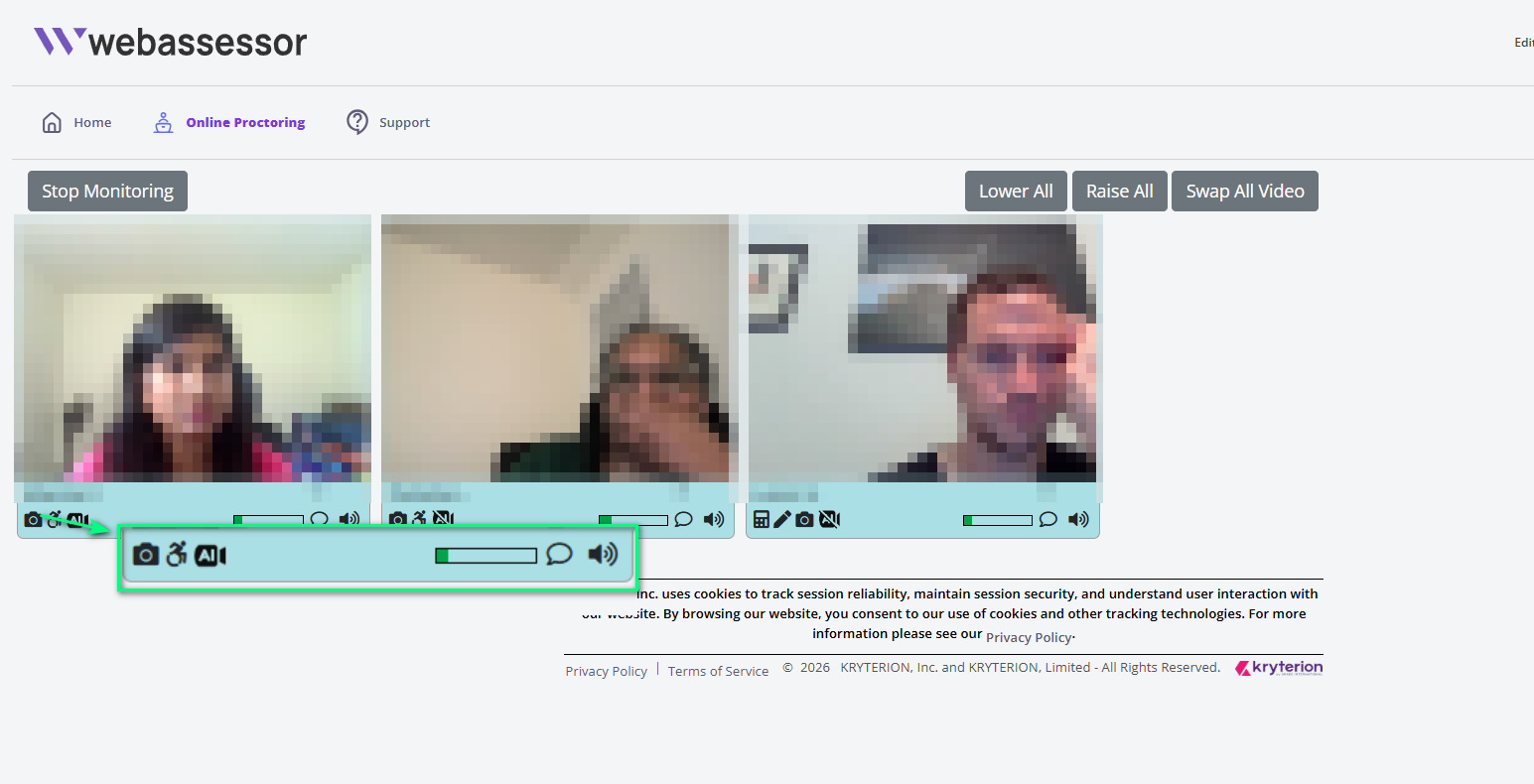
Example of a Proctor's screen when monitoring online proctored candidates.
Online Customer Support Advocate UI Example
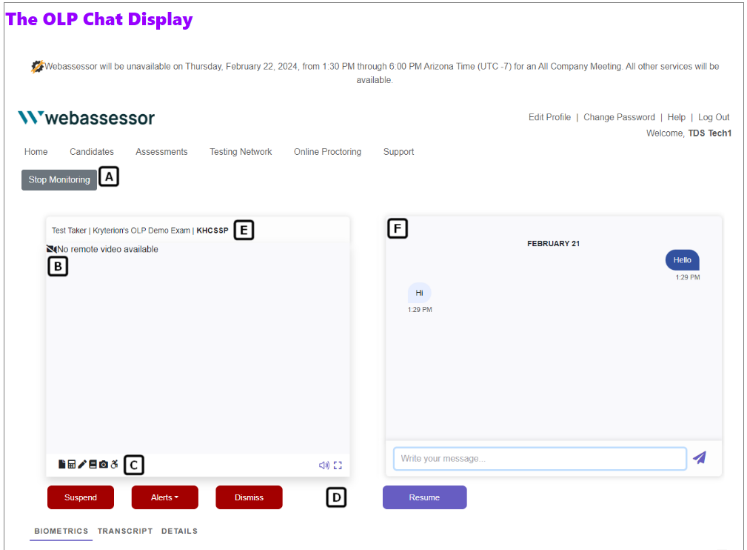
Example of a Customer Support Advocate's screen when supporting a candidate. This image is from training material.
Interruptions for Reasons Other Than Candidate Misconduct
Various disruptions can occur during a testing session, such as test delivery system or equipment failure, construction noise, power outages, unexpected arrivals, or severe weather. Candidates may also accidentally submit their test before completing it. These are not limited to online testing, and Kryterion makes every effort to keep online sessions as standardized as possible across candidates in all settings.
If an interruption occurs outside the candidate's control, the online Proctor pauses the session until the interruption is resolved and then allows the candidate to continue. If the interruption cannot be resolved, the session is discontinued, and the candidate may receive reschedule assistance depending on the Test Sponsor's reschedule rules.
Proctor to Candidate Ratio
Each Proctor monitors a limited number of sessions at a time, distributed evenly. The maximum number of sessions that can be assigned to a single online Proctor is 15. In practice, a single Proctor handles 4 to 8 sessions depending on factors such as seasonal testing volume and shift staffing.
Operationally, Kryterion Test Delivery Services forecasts Proctor staffing at a 1:8 ratio as the baseline, using Test Sponsor forecasts together with historical data. Capacity is monitored weekly and monthly, and available testing slots are limited to maintain that ratio.
The Kryterion Quality Assurance team finds the 1:8 ratio an effective balance between meeting Test Sponsor demand for testing availability and keeping Proctors and CSAs able to adequately monitor all assigned sessions. The Quality Assurance team continually monitors Proctor and CSA performance by auditing sessions for completeness and accuracy, providing feedback and remediation where needed to maintain online testing security.
Quality Assurance & Monitoring
Employee Supervision
Kryterion Proctors and Customer Support Advocates are monitored through Webassessor's Session Master, which provides a live display of all active test sessions, their status, and the associate assigned to each. Kryterion Supervisors also complete regular check-ins to monitor associate attention to their active sessions.
Quality Assurance
Each month, a sample of the sessions each Proctor and Customer Support Advocate interacted with is reviewed by Supervisors and Quality Assurance team members.
Online proctored sessions can move from one Proctor or CSA to another, with or without interruption to the candidate depending on the circumstance. For this reason, a single session may list multiple Proctors or CSAs. When reviewing a Proctor's or CSA's interaction with a session, a scorecard system is used to track overall performance as well as specific policy expectations.
Quality: Proctor
Each month, Proctors' work is checked for adherence to Kryterion Test Delivery Services (TDS) quality standards. Reviews focus on:
Procedure
-
Did the Proctor initial to signal the session was received?
-
Was the notation clear, with enough information?
-
Did they address issues by sending alerts or escalating?
-
Was anything missed before the alerts or escalation?
Quality: Customer Support Advocate
Each month, Customer Support Advocates' work is checked for adherence to Kryterion TDS quality standards. Reviews focus on:
Professionalism
-
Is the CSA providing a positive customer experience?
-
Is the CSA clear when providing directions or information?
-
Is the CSA using the correct procedure when speaking to a candidate?
Procedure
-
Has the CSA followed the correct procedure for the issue being addressed?
-
Has the CSA provided correct and appropriate information for the issue being addressed?
If a Test Delivery Services associate falls below a 90% average quality score, they have 30 days to correct their performance before being flagged for refresher training or corrective action.
Session Review & Reporting
Accessing the Session Review UI
As a Webassessor Client Admin, you can access the video recording and transcript of a candidate's online proctored exam session for your program. This is only available for the Online Proctored exam delivery type.
Session recordings are retained by Kryterion until you formally request their removal, in line with your data retention policies as the data controller.
From the Client Admin home page, select Candidates > Session Reviews.
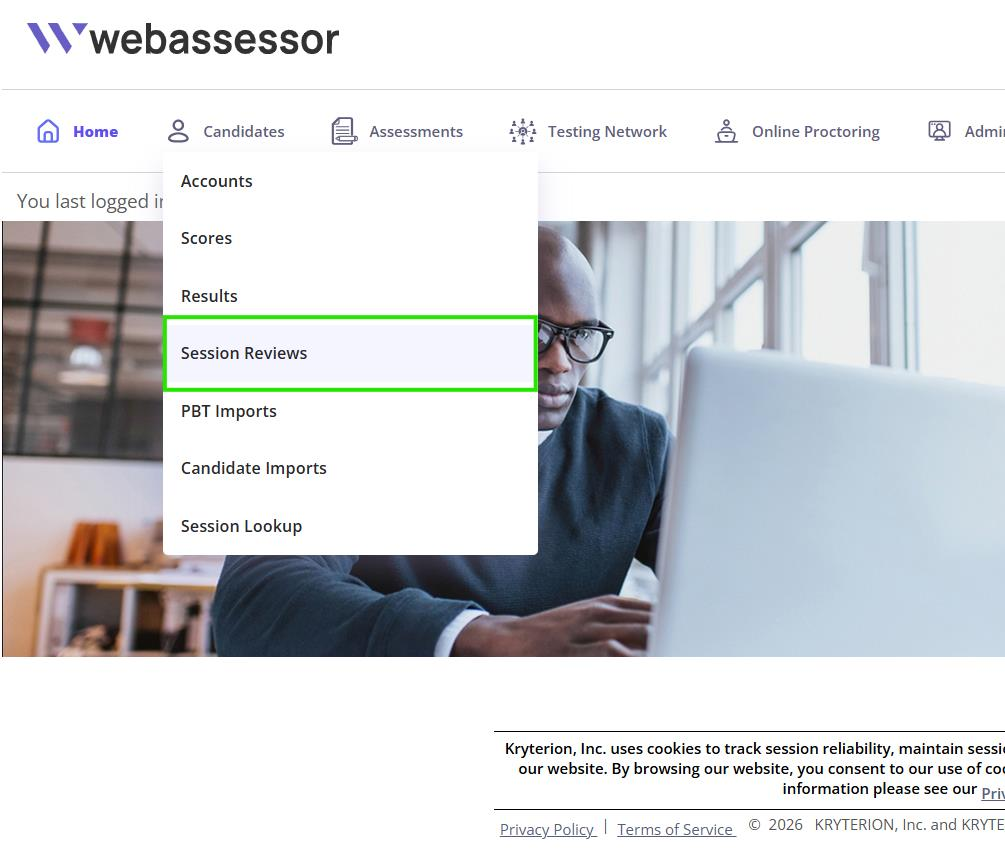
After selecting Session Reviews, you are taken to the Session Review search page, which has the following functions:
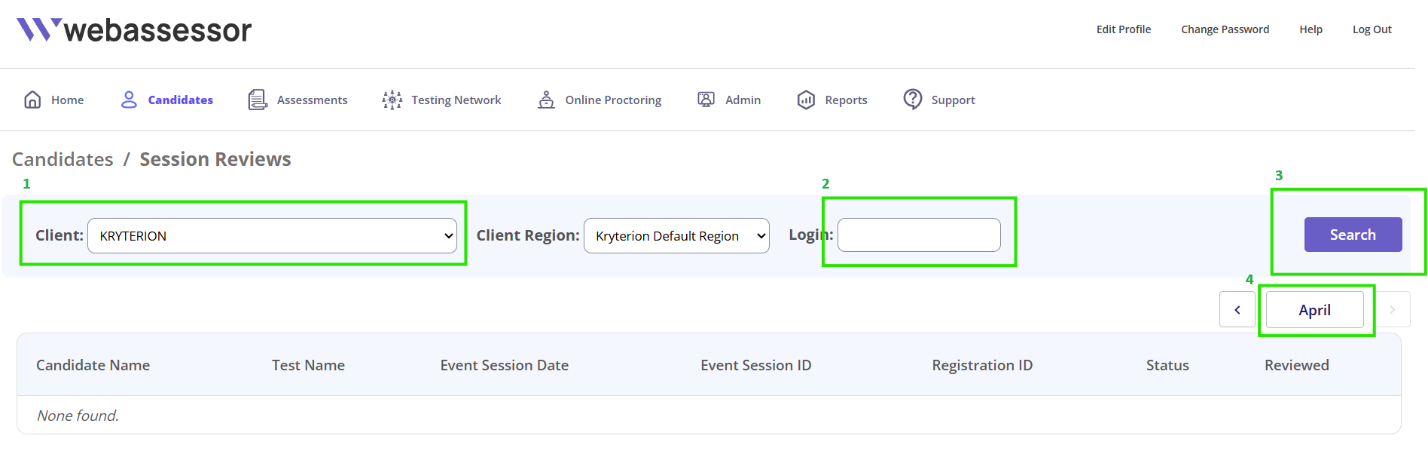
-
Client Region: Select a specific Client Region, or leave as All to search all of your Client Regions.
-
Login: Enter a candidate's login to find their session recordings, or leave blank to search all session recordings.
-
Search: Runs the session recording search.
-
Previous Month / Next Month: Defaults to the current month and year. Use these to move to the prior or following month.
-
Query results:
-
Candidate Name: The candidate's name as shown on their Webassessor account.
-
Test Name: The exam the candidate took.
-
Event Session Date: The date the exam was taken.
-
Event Session ID: Unique value for reporting purposes.
-
Registration ID: Unique value for reporting purposes.
-
Status: Live status of the exam.
-
Reviewed: Icon indicating whether the session has been reviewed by a Webassessor admin user.
-
Session Review Page
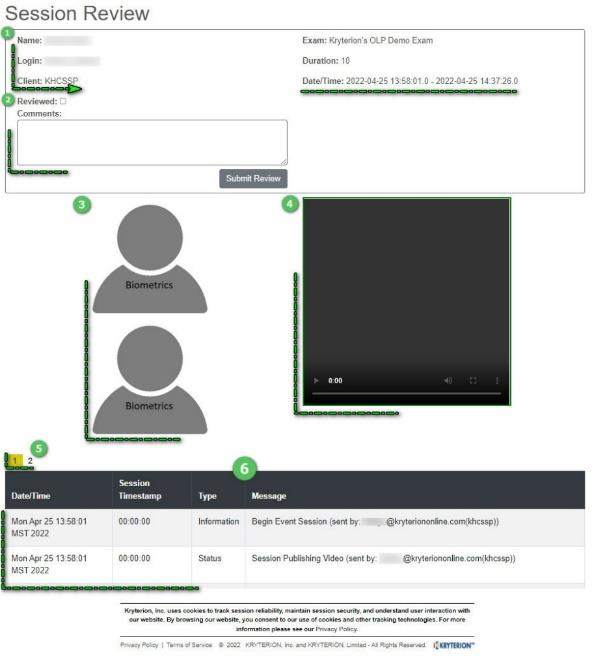
-
Candidate details from their Webassessor account.
-
Checkbox to mark the session as reviewed, and a comments box for notes.
-
Biometric enrollment photo and validation photo for side-by-side comparison.
-
Session video recording with volume and playback speed controls.
-
Transcript page selection.
-
Session transcript, recording activity such as when the exam begins, Proctor notations, CSA notations, and support conversations between the candidate and CSA.
Access to certain features is restricted based on role type in an effort to reduce item exposure and promote process integrity. Please see the member role description page for information on permissions.